When Sidecar isn't an option
Sidecar is Apple's built-in way to use an iPad as a second screen, but it only works with newer iPads signed in to your Apple ID. SpareScreen works with whatever spare device you actually have.
Click to copy. Uses Homebrew, a free and widely trusted installer for Mac apps. 7 days free, then $7.99 once.
When Sidecar can't help
- Your iPad is too old. Sidecar needs an iPad Pro, iPad (6th generation) or later, iPad mini (5th generation) or later, or iPad Air (3rd generation) or later.
- It isn't an iPad. Sidecar doesn't work with Android tablets, phones, Chromebooks or Windows laptops.
- It's on a different Apple ID, like a family member's iPad.
- Your Mac is too old for Sidecar, but runs macOS 13 or later.
In all of these, SpareScreen works: the other device only needs a modern web browser on the same Wi-Fi.
How to set it up
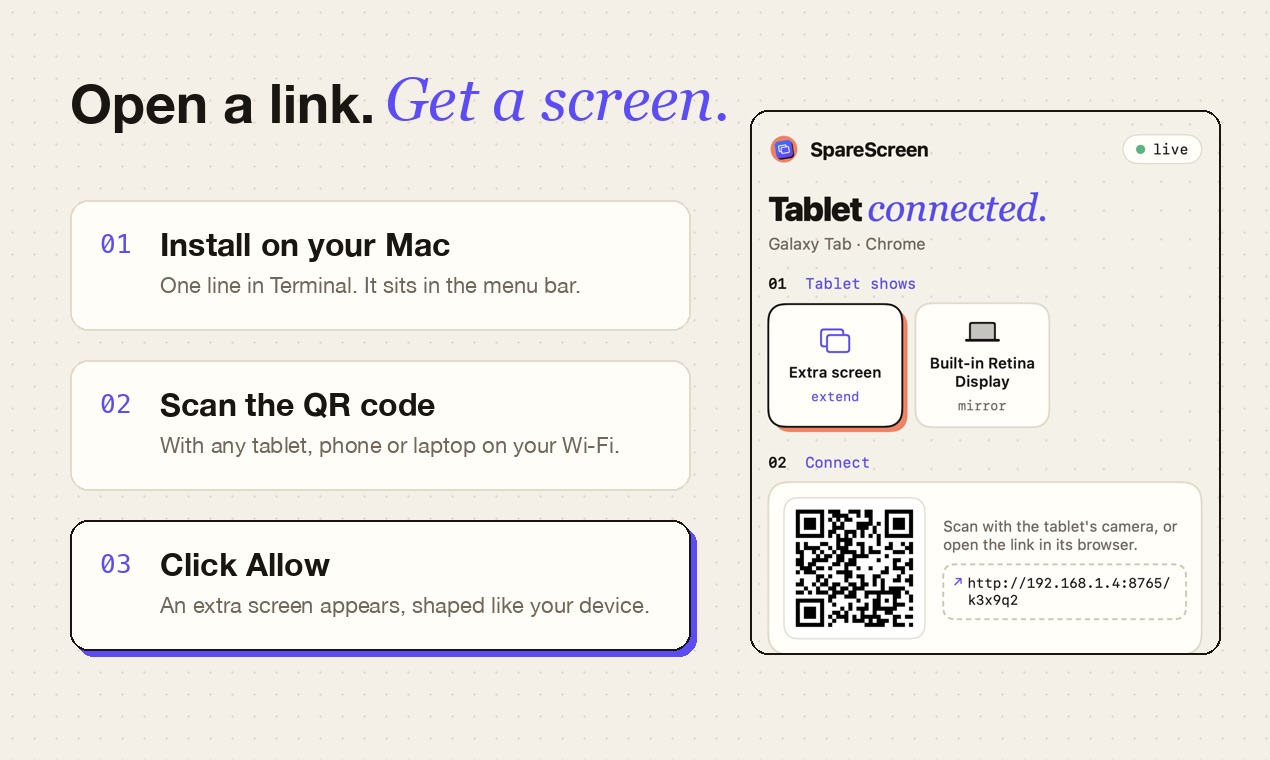
- Install SpareScreen on your Mac with the line above. It opens in the menu bar.
- Allow Screen Recording when macOS asks. That lets SpareScreen show the extra screen on your iPad or tablet.
- Open the link in its browser. Click SpareScreen in the menu bar to see the link and its QR code, then open it on the iPad or tablet. Both need to be on the same Wi-Fi.
- Click Allow on the Mac. An extra screen appears, shaped exactly like your iPad or tablet. Drag windows onto it like any monitor.
Good to know
- You can use Sidecar and SpareScreen together: a newer iPad on Sidecar and an older device on SpareScreen, for two extra screens.
- Touch control is optional. Turn it on in the SpareScreen menu (it asks for Accessibility permission) to tap, drag, right-click and scroll on the device. Typing still happens on the Mac.
- Everyday work feels instant. Video and fast scrolling are heavier and can stutter on slow Wi-Fi; 5 GHz Wi-Fi helps.
- Streaming services stay black. Netflix, Prime Video and Disney+ block screen capture in every app like this.
- Use Wi-Fi you trust. The picture travels over your local network, never through the internet.
Questions
Is there a Sidecar alternative for Android tablets?
Yes. SpareScreen works with any Android tablet: it opens a link in Chrome and shows an extra Mac screen.
Is there a Sidecar alternative for older iPads?
Yes. SpareScreen doesn't use Sidecar, so it isn't limited to Apple's list of supported iPads.
What does SpareScreen cost?
It's free for 7 days, then $7.99 once. It's a one-time purchase with no subscription, and one key works on up to 3 Macs.
Which Macs does it work on?
Any Mac running macOS 13 Ventura or later, with Apple Silicon or Intel.
More guides
Last updated October 2026.