A wireless second monitor for your MacBook
You don't need to buy a portable monitor or carry cables. SpareScreen turns a tablet, phone or old laptop you already own into a wireless second screen for your MacBook Air or MacBook Pro.
Install on your Mac: paste this into Terminal
Click to copy. Uses Homebrew, a free and widely trusted installer for Mac apps. 7 days free, then $7.99 once.
Why it suits a MacBook
- No cables or hub. Everything goes over Wi-Fi, so your ports stay free.
- Works anywhere with Wi-Fi: at home, in the office, or on a hotel network where both devices connect.
- Connects by itself. Open the link and the screen appears; close it and your windows come back to the MacBook.
How to set it up
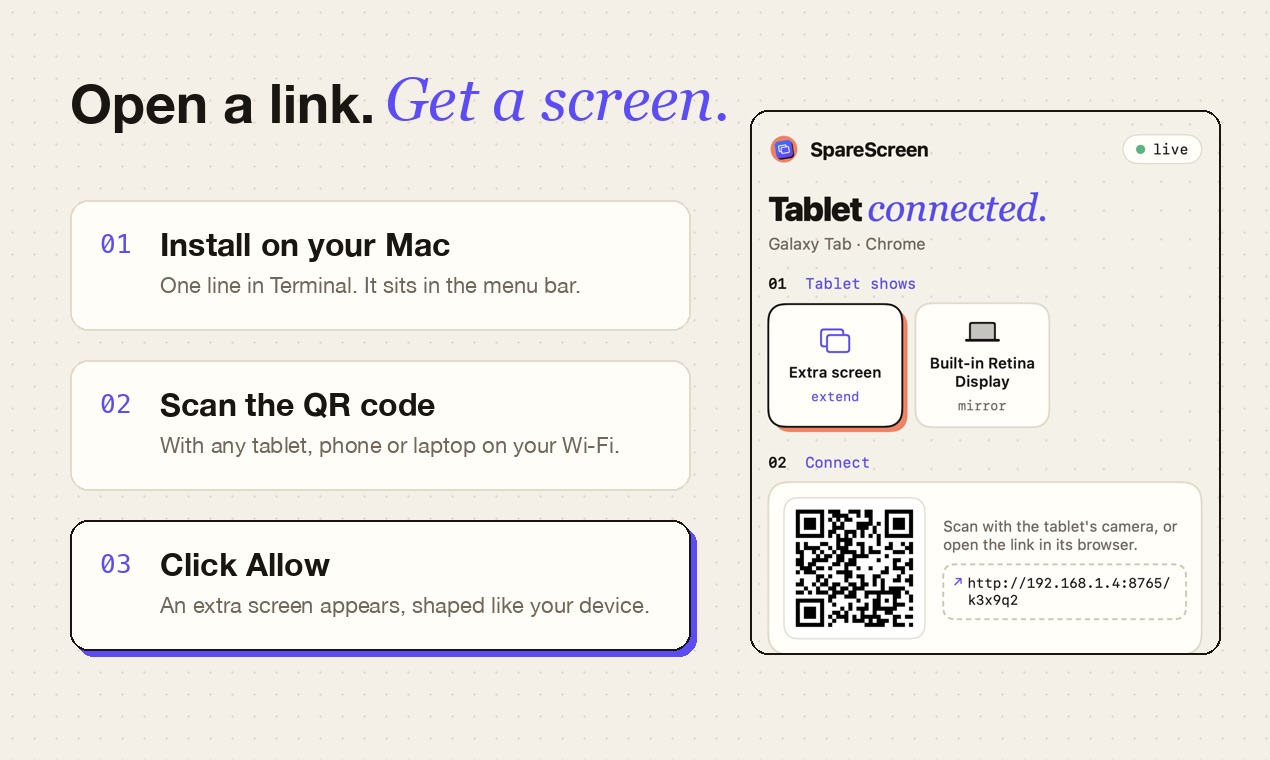
- Install SpareScreen on your Mac with the line above. It opens in the menu bar.
- Allow Screen Recording when macOS asks. That lets SpareScreen show the extra screen on your tablet.
- Open the link in its browser. Click SpareScreen in the menu bar to see the link and its QR code, then open it on the tablet. Both need to be on the same Wi-Fi.
- Click Allow on the Mac. An extra screen appears, shaped exactly like your tablet. Drag windows onto it like any monitor.
Good to know
- On hotel or office Wi-Fi, devices sometimes can't see each other. Turning on your iPhone's Personal Hotspot and joining both to it works around that.
- Touch control is optional. Turn it on in the SpareScreen menu (it asks for Accessibility permission) to tap, drag, right-click and scroll on the device. Typing still happens on the Mac.
- Everyday work feels instant. Video and fast scrolling are heavier and can stutter on slow Wi-Fi; 5 GHz Wi-Fi helps.
- Streaming services stay black. Netflix, Prime Video and Disney+ block screen capture in every app like this.
- Use Wi-Fi you trust. The picture travels over your local network, never through the internet.
Questions
Can I get a wireless second monitor for a MacBook Air?
Yes. Any MacBook Air or MacBook Pro on macOS 13 or later works with SpareScreen, using a tablet, phone or laptop as the screen.
Do I need the internet?
Only once, to activate your key. After that the MacBook and the device just need to be on the same Wi-Fi.
What does SpareScreen cost?
It's free for 7 days, then $7.99 once. It's a one-time purchase with no subscription, and one key works on up to 3 Macs.
Which Macs does it work on?
Any Mac running macOS 13 Ventura or later, with Apple Silicon or Intel.
More guides
Last updated October 2026.